

TL;DR Java has no PDF support in the standard library, so editing a PDF means adding a third-party library. JPedal does it through a single class, PdfManipulator: load a document, queue your edits (page operations, text, images, shapes, annotations, bookmarks, metadata, redaction, encryption, compression), then call apply() and writeDocument(). Programmatic editing is not word-processor editing, though. Text lives in content streams positioned by coordinates, so you add, overlay or remove content rather than reflow it.
Contents:
- What editing a PDF in Java actually means
- Requirements
- Combining PDF Editing Commands
- The PdfManipulator Workflow
- Page operations
- Adding content to a page
- Document-level edits
- Sanitizing and redacting
- Replacing existing text
- Reducing file size
- Encryption settings
- Reading document properties
- One-line edits with static methods
- Frequently asked questions
What editing a PDF in Java actually means
A PDF page has no paragraphs or lines to retype. Its text is a sequence of glyphs drawn at fixed coordinates by operators in a content stream, which is why you can’t just open and edit a PDF file the way you would a Word document. Editing one from Java means loading the file into a library that can parse the PDF object graph, queueing changes against pages or the document catalog, and writing a new file.
This tutorial does that with JPedal and its PdfManipulator class, which handles page operations, content additions, metadata, redaction, and file size optimization behind a single queue-based API. Everything in it is verified against JPedal 2026.08 running on Java 17.
Requirements
- A JPedal jar, either the trial or a licensed build
- Java 17 or later (JPedal 2026.08 supports Java 17, Java 21, and the current release)
- Maven or Gradle, if you are not adding the jar to the classpath by hand
Maven setup is split across two files. The repository and the dependency go in your project’s pom.xml, and your login goes in your user settings.xml, which lives in ~/.m2/ on Linux and macOS and %userprofile%\.m2\ on Windows. Create settings.xml if it is not already there.
In pom.xml:
<repositories>
    <repository>
        <id>IDRsolutions</id>
        <name>IDR Solutions</name>
        <url>https://maven.idrsolutions.com</url>
    </repository>
</repositories>

<dependencies>
    <dependency>
        <groupId>com.idrsolutions</groupId>
        <artifactId>jpedal</artifactId>
        <version>2026.08</version>
    </dependency>
</dependencies>
In settings.xml:
<servers>
    <server>
        <id>IDRsolutions</id>
        <username>{Customer Username or Trial Token}</username>
        <password>{Customer Password or Trial Token}</password>
    </server>
</servers>
The server id has to match the repository id, or Maven will hit the repository unauthenticated and fail to resolve the artifact. Versions use a YYYY.MM format and only releases after 2021.11 are hosted. Use jpedal-trial as the artifact ID during evaluation, with your trial token as both the username and the password. Customers who need a daily build use jpedal-daily, versioned YYYY.MM.DD, and only the most recent one is kept.
Combining PDF Editing Commands
This loads a PDF, rotates page one, drops page three, stamps text on the first page, and writes the result. For text, image and shape stamps applied across a whole document, see how to add a watermark to a PDF in Java.
final PdfManipulator pdf = new PdfManipulator();
pdf.loadDocument(new File("input.pdf"));

pdf.rotatePage(1, 90);
pdf.removePage(3);
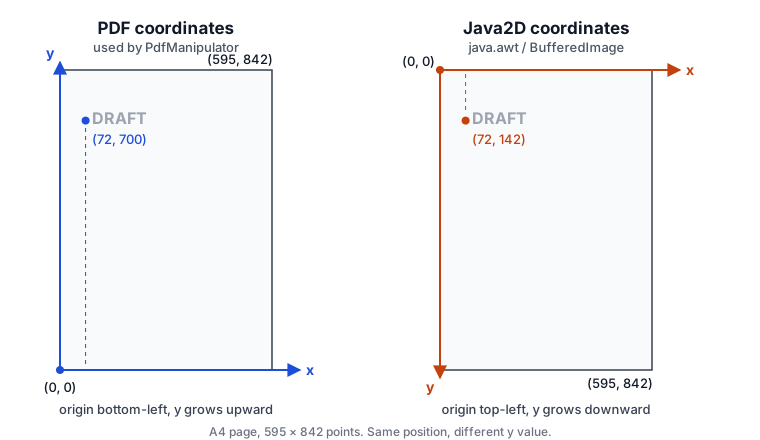
pdf.addText(1, "DRAFT", 72, 700, BaseFont.HelveticaBold, 24, 1, 0.3f, 0.2f);

pdf.apply();
pdf.writeDocument(new File("output.pdf"));
pdf.closeDocument();
Page indices start at 1, not 0. Coordinates are PDF coordinates with the origin at the bottom-left of the page, so y = 700 is near the top of an A4 page rather than near the bottom. Java2D measures y downward from the top-left, so a y value that came from Java2D code has to be flipped (pageHeight - y) before you pass it in:
For how a glyph’s position relates to its visible outline, see how PDF text coordinates work.
Note that calling apply() performs the manipulations internally but does not produce any output on the disk; you must call one of the writeDocument() methods afterwards.
The PdfManipulator Workflow
- Create a
PdfManipulatorinstance. - Load a document with
loadDocument(), or create a blank one withnewDocument(). - Queue one or more manipulations.
- Call
apply()to run the queue against the loaded document. - Call
writeDocument()to produce output. - Call
closeDocument()to release resources. - Call
reset()if you want to clear the queue before the next document.
The queue survives apply(). That is deliberate: it lets you apply an identical set of edits across a directory of files without rebuilding the queue each time. Reverse steps 2 and 3, queue once, and loop over your inputs.
final PdfManipulator pdf = new PdfManipulator();
pdf.removeMetadata();
pdf.removeJavaScript();

for (final File file : inputFiles) {
    try {
        pdf.loadDocument(file);
        pdf.apply();
        pdf.writeDocument(new File(outputDir, file.getName()));
        pdf.closeDocument();
    } catch (final IOException e) {
        // one bad file should not kill the batch
        log.warn("Skipped {}", file, e);
    }
}
If you want the queue cleared automatically after every apply(), set the flag once:
pdf.setResetQueueAfterApply(true);
The cost of apply() scales with the size of the queue, so a queue with hundreds of manipulations in it is not ideal, but writing to disk is the real bottleneck. Batch your edits and call writeDocument() once per document.
Page operations
Most manipulation methods come in three forms: one page, a PageRanges selection, or every page in the document. Combining pages from separate files is a different operation, covered in PDF merge in Java.
pdf.rotatePage(1, 90);                          // one page
pdf.rotatePage(new PageRanges("1-3,7"), 90);    // a selection
pdf.rotatePage(90);                             // all pages
PageRanges is javax.print.attribute.standard.PageRanges from the JDK, so the syntax is the standard SetOfIntegerSyntax.
Add a page
pdf.addPage(1, PaperSize.A4_LANDSCAPE);
pdf.addPage(new PageRanges("1-10"), PaperSize.LEGAL_PORTRAIT);
To append at the end, pass an index one higher than the current page count.
Copy a page
pdf.copyPage(1, 2);
Crop a page
Crop by factor or to a target dimension, with an optional anchor controlling which part of the page survives:
pdf.cropPage(1, 0.5f, 0.5f);
pdf.cropPage(new PageRanges("1,3,4"), 400, 500, ScaleMode.SCALE_TO_DIMENSION);
pdf.cropPage(1, 0.5f, 0.5f, ScaleMode.SCALE_BY_FACTOR, Anchor.CENTER);
Isolate pages
Keeps the pages you name and discards everything else:
pdf.isolatePage(new PageRanges("1-2"));
Move a page
pdf.movePage(1, 2);
N-up pages
Arranges pages into a grid, which is what you want before sending a document to a duplex printer:
pdf.nUp(new PageRanges(1, 10), 2, 2);
pdf.nUp(new PageRanges(1, 10), 2, 2, 0.5f);
No scaling is applied by default, so a 2x2 grid page comes out at twice the width and twice the height of its contents. Pass the scaling factor in the fourth argument (0.5f for a 2x2 grid) to keep the original page dimensions.
Remove a page
pdf.removePage(1);
pdf.removePage(new PageRanges("1-10"));
Rescale a page
pdf.scalePage(1, 0.5f, 0.5f);
pdf.scalePage(new PageRanges("1,3,4"), 400, 500, ScaleMode.SCALE_TO_DIMENSION);
Rescale page content
Resizes what is drawn on the page while leaving the page box alone, which is how you make room for a header or a binding margin:
pdf.scalePageContent(1, 0.5f, 0.5f, 0.0f, 0.0f);
pdf.scalePageContent(new PageRanges("1-10"), 0.5f, 0.5f, ScalePageContent.RIGHT);
The two trailing floats translate the scaled content. Because the origin is bottom-left, 10, 10 shifts content up and to the right. ScalePageContent also carries presets such as RIGHT for common placements.
Reverse pages
pdf.reversePages();
Rotate a page
rotatePage() is relative to the current rotation, setPageRotation() is absolute. Both take degrees in multiples of 90:
pdf.rotatePage(1, -90);
pdf.setPageRotation(1, 180);
If you are rotating a mixed batch where some pages already carry a /Rotate value, use setPageRotation() so the result is deterministic.
Swap pages
pdf.swapPages(1, 2);
Adding content to a page
Text
pdf.addText(1, "Hello World", 10, 10, BaseFont.HelveticaBold, 12, 1, 0.3f, 0.2f);
The font has to be one of the PDF base fonts listed in BaseFont. Base fonts are guaranteed to be present in every conforming PDF reader, which is why no font file is required and no font gets embedded.
Images
addImage() takes either a BufferedImage or raw pixel bytes, plus a rectangle in the form [X, Y, W, H]:
final BufferedImage img = ImageIO.read(new File("logo.png"));
pdf.addImage(1, img, new float[] {X, Y, W, H});
With raw bytes you supply the pixel dimensions and the color space yourself. Supported values on AddImage.ColorSpace are ACMYK, AGRAY, ARGB, CMYK, GRAY, and RGB:
pdf.addImage(1, imgBytes, W, H, AddImage.ColorSpace.CMYK, new float[] {X, Y, W, H});
ImageIO covers BMP, GIF, JPEG, and PNG.
For TIFF, JPEG 2000, HEIC, WebP, or CMYK JPEGs that ImageIO mangles, decode with JDeli first and hand the resulting BufferedImage to addImage().
Shapes
Any java.awt.Shape works, drawn in PDF coordinates:
final Shape shape = new Rectangle2D.Float(56.7f, 596.64f, 131.53f, 139.25f);
final DrawParameters params = new DrawParameters();
params.setStrokeColor(new float[] {1, 0, 0});
params.setFillRule(DrawParameters.STROKE);
pdf.addShape(1, shape, params);
Set the fill rule. The default drawing mode paints nothing, so a shape added without setFillRule() compiles, runs, writes, and leaves you staring at an unchanged page.
Annotations
Annotations sit above page content and stay interactive in a viewer. The rectangle is two corner points, [X1, Y1, X2, Y2]:
final Annotation[] annotations = new Annotation[2];
annotations[0] = new FreeText(new float[] {X1, Y1, X2, Y2}, "hello!",
        new float[] {1.0f, 0.0f, 0.0f}, BaseFont.TimesRoman, 12, Quadding.CENTRED);
annotations[1] = new Link(new float[] {X1, Y1, X2, Y2},
        new float[] {0.0f, 0.0f, 1.0f}, "https://idrsolutions.com/");
pdf.addAnnotation(1, annotations);
Supported types are Caret, Circle, FileAttachment, FreeText, Highlight, Ink, Line, Link, PolyLine, Polygon, Square, Squiggly, Stamp, StrikeOut, Text, and Underline.
If you know PDF content stream syntax you can supply your own appearance stream through an XObject rather than relying on the viewer to synthesize one:
final Annotation annotation = new Annotation();
final XObject x = new XObject();
x.draw("q\n 0 0 1 rg\n 0 0 1 RG\n 1 1 199 199 re\n B\n Q\n");
annotation.setNormalAppearance(x);
annotation.setRolloverAppearance(x);
annotation.setDownAppearance(x);
Embedded and attached files
embedFile() puts a file inside the PDF with no visible marker. attachFile() does the same and adds a FileAttachment annotation on the page so a reader can see and open it:
pdf.embedFile(new File("embed.png"), "embedded-image");

pdf.attachFile(1, new File("embed.png"), "embedded-image",
        new float[] {X, Y, W, H}, new float[] {0.7f, 0.3f, 0.4f});
The final argument is the annotation color and takes 1, 3, or 4 components for gray, RGB, or CMYK.
Document-level edits
Bookmarks
Bookmarks are built as a tree and set in one call. JPedal does not currently insert into an existing outline, so addBookmarks() replaces whatever was there:
final Bookmarks root = new Bookmarks();
final Bookmark b = root.addChild("1", 1)
        .addChild("1.1", 2)
        .addChild("1.1.1", 3);
b.addChild("1.1.1.a", 4);
b.addChild("1.1.1.b", 5);
root.addChild("2", 11)
        .addChild("2.1", 13);
pdf.addBookmarks(root);
Clear them with pdf.removeBookmarks();. The bookmarks tutorial covers building deeper outline trees.
Table of contents
Generated from the bookmarks, inserted before the page index you give it:
pdf.addTableOfContents(1, PaperSize.A4_PORTRAIT, BaseFont.Helvetica, 12, new float[] {0, 0, 0});
Queue addBookmarks() before addTableOfContents(), since the generator reads the outline that exists at the time it runs.
Document info and XMP metadata
final DocumentInfo docInfo = pdf.getDocumentInfo();
docInfo.setTitle("My PDF");
docInfo.setCreationDate(Instant.now());
pdf.setDocumentInfo(docInfo);
DocumentInfo covers Author, CreationDate, Creator, Keywords, ModDate, Producer, Subject, and Title. To read these fields without editing the file, see how to read PDF metadata in Java. For PDF 2.0 output, write an XMP stream instead of the legacy info dictionary:
pdf.setDocumentMetadata(docInfo.toXMP());
Initial view
Controls how a viewer opens the document, including the landing page, the page layout, and the viewer preferences:
final ViewerPreferences vp = new ViewerPreferences();
vp.setDisplayDocTitle(false);
pdf.setInitialView(3, new Destination.Fit(), PageLayout.TWO_PAGE_LEFT, PageMode.USE_NONE, vp);
Sanitizing and redacting
Redaction removes the glyphs inside a rectangle from the content stream. It is a real deletion, not a black box drawn over the text:
pdf.redact(new PageRanges(1, 10), new float[] {X1, Y1, X2, Y2});
pdf.redact(new PageRanges(1, 10), new float[] {X1, Y1, X2, Y2}, 0.75f);
The optional third argument is the coverage threshold: the fraction of a glyph’s bounding box that must fall inside the rectangle before it gets removed. The default is 0.75. Lower it toward 0.5 if edge characters are surviving, raise it if characters just outside your rectangle are disappearing.
The remaining sanitization methods each strip one class of content:
pdf.flattenLayers();          // hidden layers removed, visible ones made permanent
pdf.removeAnnotations();      // or removeAnnotations(new PageRanges("1-3,5"))
pdf.removeBlankPages();
pdf.removeEmbeddedFiles();
pdf.removeInitialView();
pdf.removeJavaScript();
pdf.removeLinks();
pdf.removeMetadata();         // info dictionary and XMP streams
Removing annotations has a tutorial of its own if that is the only clean-up you need.
removeJavaScript() returns quietly on documents that contain none, so there is no need to gate it behind a check. If you do want to know before deciding, containsJavaScript() reports it.
Replacing existing text
There is no replaceText() method. A content stream stores glyph codes for a specific, often subsetted, embedded font at fixed positions, so there is no reliable way to change text in place. Replacing text means removing the old glyphs and drawing new ones where they were. With PdfManipulator that is redact() followed by addText():
final PdfManipulator pdf = new PdfManipulator();
pdf.loadDocument(new File("inputFile.pdf"));

pdf.redact(new PageRanges(1, 10), new float[] {X1, Y1, X2, Y2});
pdf.addText(1, "Hello World", 10, 10, BaseFont.HelveticaBold, 12, 1, 0.3f, 0.2f);

pdf.apply();
pdf.writeDocument(new File("outputFile.pdf"));
pdf.closeDocument();
Set the redaction rectangle to cover the old text and the addText() coordinates to the same spot. Both use PDF coordinates, so measure from the bottom-left. redact() takes a PageRanges; new PageRanges(1, 1) limits it to the first page.
Queue the redaction first. Manipulations run in the order they were added, and a redaction queued after addText() can remove the new text along with the old if it falls inside the rectangle.
To find where the old text sits, search the PDF in Java for it before you edit.
The replacement has to use one of the PDF base fonts in BaseFont, so it will not match an embedded font from the original document. That is fine for values on forms, dates, reference numbers and stamps. It is not a way to rewrite a sentence inside typeset body text without the change being visible.
Reducing file size
Editing tends to grow a PDF. These three methods pull it back down (for background on which filter suits which content, see the best compression format for PDF):
pdf.downsampleImages();       // resample images to their effective display resolution
pdf.optimizeColorPalette();   // convert eligible images to an indexed color space
pdf.rewriteStream(new PageRanges("1-10"));  // rebuild and recompress content streams
rewriteStream() recompresses using whichever algorithm is currently selected. JPedal supports Flate and LZW, and defaults to Flate:
pdf.setCompressionAlgorithm(Filter.FLATE);
Changing the algorithm affects streams JPedal writes. Existing streams that already use a different filter are left alone until you rewrite them.
Encryption settings
Encryption is triggered by the password overloads of writeDocument(). EncryptionSettings controls the parameters:
final EncryptionSettings es = pdf.getEncryptionSettings();
es.setEncryptMetadata(false);
pdf.writeDocument(new File("outputFile.pdf"), "password".getBytes());
Leaving metadata unencrypted lets indexers and DMS platforms read the document properties without the password, which is usually what you want for searchable archives.
Reading document properties
There are several query methods which return immediately rather than joining the queue:
final int pages = pdf.getPageCount();
final float[] mediabox = pdf.getPageMediaBox(1);
final float[] cropbox = pdf.getPageCropBox(1);
final boolean javascript = pdf.containsJavaScript();
getPageMediaBox() is the one to call before positioning anything. Hardcoding A4 dimensions works until a scanned page comes through at US Letter and your footer text lands 50 points off the bottom edge.
One-line edits with static methods
For a single operation, the static methods load, apply, and write in one call, which fits neatly into an existing pipeline stage. These operations are available as static methods:
- Downsample images
- Embed file
- Encrypt
- Flatten layers
- N-up
- Optimize color palette
- Remove annotations
- Remove blank pages
- Remove bookmarks
- Remove embedded files
- Remove initial view
- Remove JavaScript
- Remove links
- Remove metadata
- Reverse pages
- Split in half
- Split into pages
Chaining several static calls means reading and writing the file once per operation. Two or more edits on the same document belong on a PdfManipulator instance.
Frequently asked questions
Can Java edit a PDF without a library?
No. The JDK has no PDF parser or writer, so you need a third-party library such as JPedal to load a PDF, change it and save it.
Can I change existing text in a PDF with JPedal?
Not in place. Redact the old text, then draw the new text at the same position with addText(). See Replacing existing text.
How do I edit a password-protected PDF in Java?
Pass the password when you load the document, then queue edits as normal:
pdf.loadDocument(new File("inputFile.pdf"), "password".getBytes());
To password-protect the output, use one of the password overloads of writeDocument() described in Encryption settings.
How do I create a new PDF instead of editing an existing one?
Call newDocument() in place of loadDocument(). It creates a document with a single empty page of the size you give it:
pdf.newDocument(PaperSize.A4_LANDSCAPE);
Can I apply the same edits to many PDFs?
Yes. The queue survives apply(), so you queue the edits once and loop over your files. See The PdfManipulator Workflow.
We have been working with PDFs for over 25 years and have other resources to help you learn more about the PDF format.