
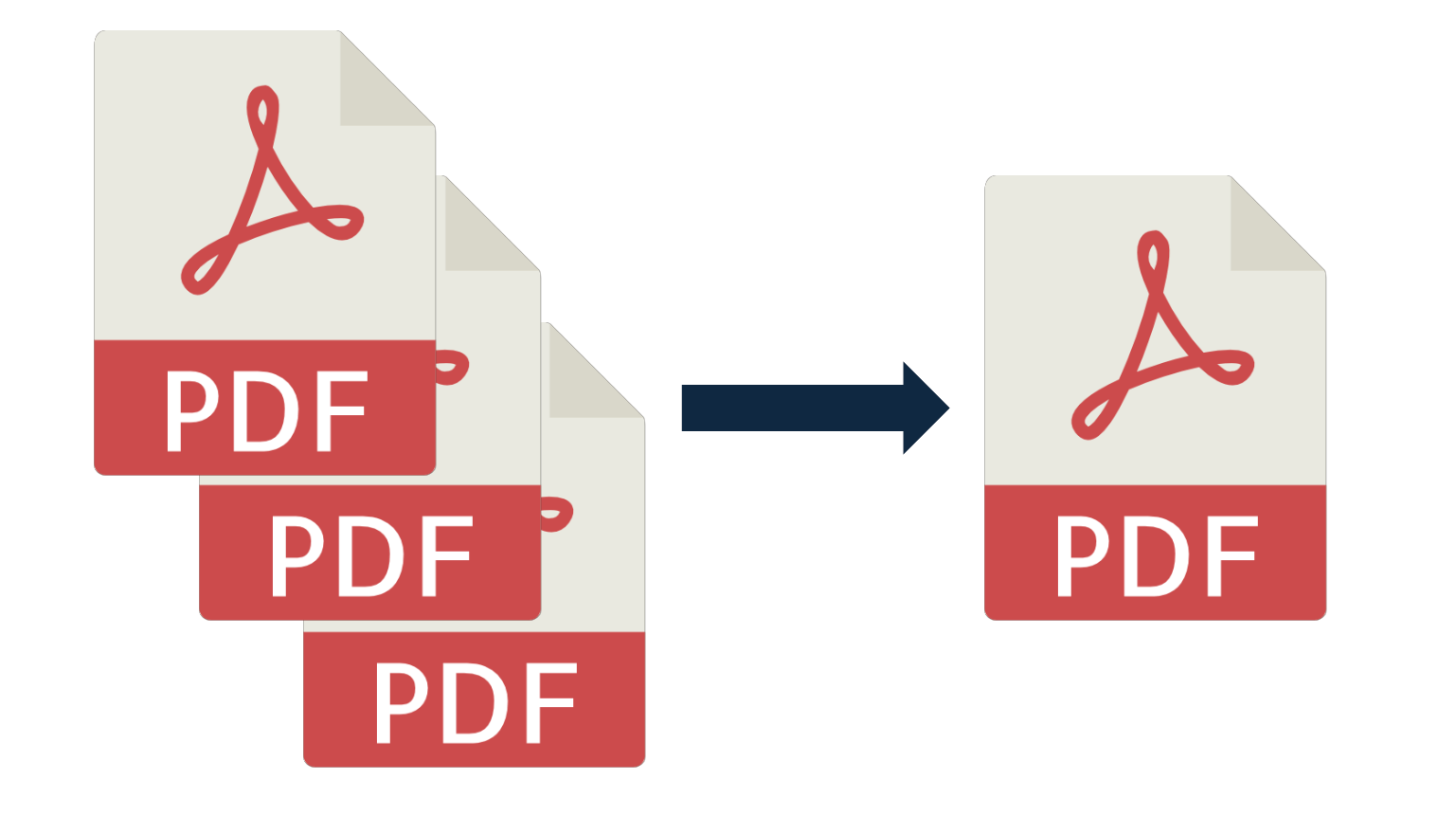
In the latest release of our PDF library JPedal, we added some new features to our PDF merging tool. These new settings allow for greater control over the output when merging two or more PDF files.
How to use each new feature
First, you will need to create a list of MergeOptions and add each option to the list.
final ArrayList<MergeOption> options = new ArrayList<>();

options.add(MergeOption.INTERLEAVE);
Then you can call PdfMerge.mergeFiles() and pass the options list.
PdfMerge.mergeFiles(new File[] {new File("inputFile1.pdf"), …}, new File("outputFile.pdf"), options);
Add a dividing page
To add a blank page in between each input document, you can use MergeOption.ADD_DIVIDING_PAGE.
To add a footer to all pages which includes the original filename and page number, you can use MergeOption.ADD_FOOTER.
You can customise the appearance of the footer using PdfMergeAttributes.
Interleave
To merge documents by alternating pages from each input document, you can use MergeOption.INTERLEAVE.
Learn more about interleave merging.
Normalize page size
To ensure all pages in the output document are the same dimensions as the first page, you can use MergeOption.NORMALISE_PAGE_SIZE_TO_MATCH_FIRST.
Normalize page rotation
To ensure all pages in the output document have the same orientation as the first page, you can use MergeOption.NORMALISE_ROTATION_TO_MATCH_FIRST.
Download JPedal to get started
Download a JPedal jar from our website to instantly start merging PDF files.
Resources
Learn more about how to merge PDFs in Java.
We can help you better understand the PDF format as developers who have been working with the format for more than 2 decades!
The JPedal PDF library allows you to solve these problems in Java
//Convenience static method (see class for additional options)
ExtractClippedImages.writeAllClippedImagesToDir("inputFileOrDirectory", "outputDir", "outputImageFormat", new String[] {"imageHeightAsFloat", "subDirectoryForHeight"});
final PdfManipulator pdf = new PdfManipulator();
pdf.loadDocument(new File("inputFile.pdf"));
pdf.addPage(1, PaperSize.A4_LANDSCAPE);
pdf.addText(1, "Hello World", 10, 10, BaseFont.HelveticaBold, 12, 1, 0.3f, 0.2f);
pdf.addImage(1, new BufferedImage(), new float[] {0, 0, 100, 100});
pdf.rotatePage(1, 90);
pdf.apply();
pdf.writeDocument(new File("outputFile.pdf"));
Viewer viewer = new Viewer();
viewer.setupViewer();
viewer.executeCommand(ViewerCommands.OPENFILE, "pdfFile.pdf");
//Convenience static method (see class for additional options)
ExtractTextAsWordList.writeAllWordlistsToDir("inputFileOrDirectory", "outputDir", -1);
PdfMerge.mergeFiles(new File("inputFile1.pdf"), new File("inputFile2.pdf"), new File("outputFile.pdf"));

PdfManipulator.splitInHalf(new File("inputFile.pdf"), new File("outputFolder"), pageToSplitAt);
PrintPdfPages print = new PrintPdfPages("C:/pdfs/mypdf.pdf");
if (print.openPDFFile()) {
print.printAllPages("Printer Name");
}//Convenience static method (see class for additional options)
ExtractClippedImages.writeAllClippedImagesToDir("inputFileOrDirectory", "outputDir", "outputImageFormat", new String[] {"imageHeightAsFloat", "subDirectoryForHeight"});
//Convenience static method (see class for additional options)
ArrayList resultsForPages = FindTextInRectangle.findTextOnAllPages("/path/to/file.pdf", "textToFind");
java -jar jpedal.jar --inspect "inputFile.pdf"PdfSigner.signPdf(
"inputFile.pdf",
"outputFile.pdf",
"keystorePassword",
"keystoreFile.p12",
"signerName",
"signerLocation",
"signingReason",
ACCESS_PERMISSION.P1
);What is JPedal?
JPedal is a commercial Java PDF Library that makes it easy for Java developers to work with PDF Documents in Java.
Why use JPedal?
JPedal makes it much easier to work with PDF files from Java. Because we have been actively developing our Java PDF Toolkit for over 20 years, it works with all those problem PDF files out there.
What licenses are available?
We have 2 licenses available:
'Server' for on premises and cloud servers and 'OEM' for use in a named end user applications. Both are one time fees with options support renewal after 12 months.
How to use JPedal?
Want to learn more about JPedal and how to use it, we have plenty of tutorials and guides to help you.