TL;DR
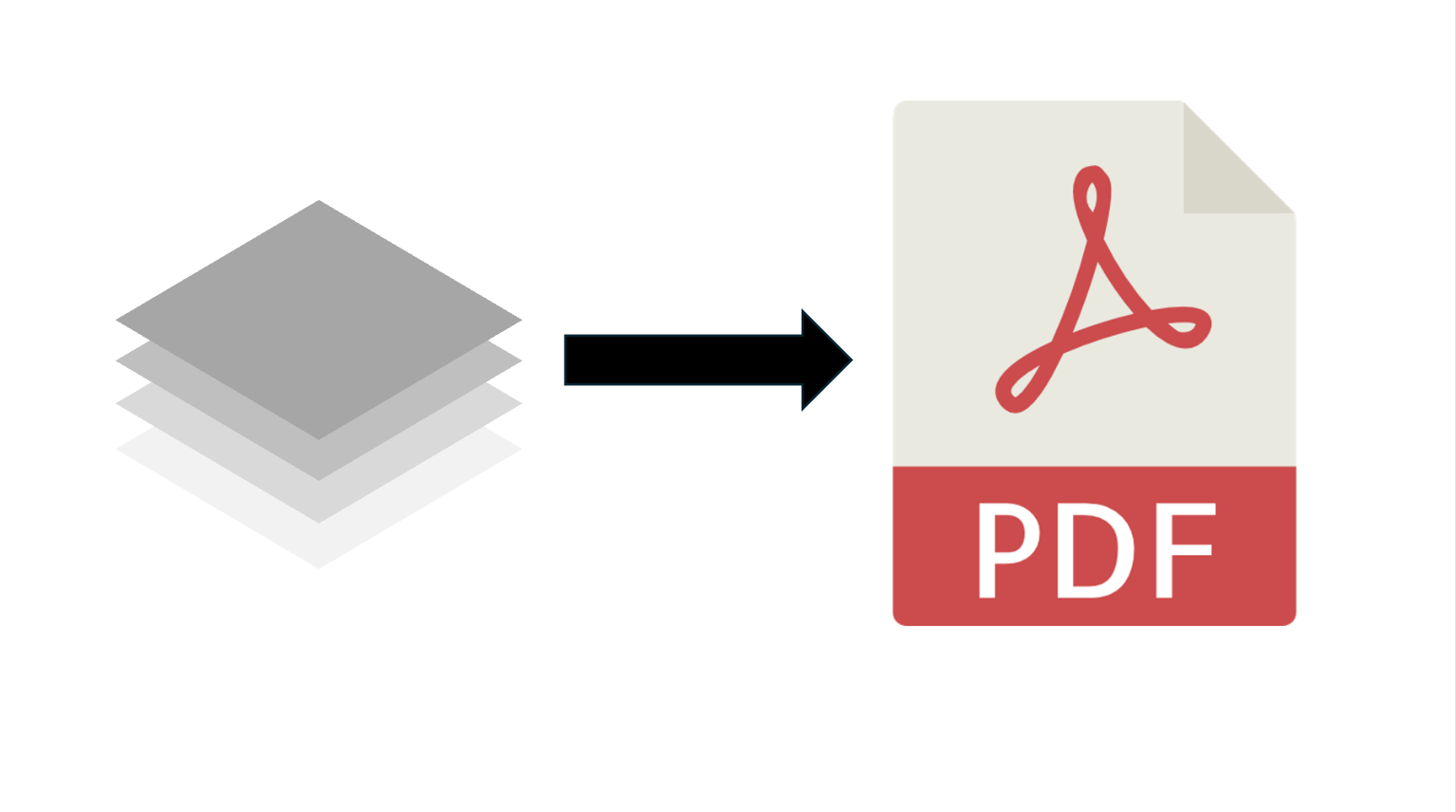
Flattening PDF layers in Java is a way to lock a document’s appearance, ensure cross-device compatibility, and reduce file size by merging optional content into a single layer.
Using the JPedal library, the process involves three main steps:
- Load: Initialize the
PdfManipulatorand load your PDF file. - Flatten: Call the
.flattenLayers()method to merge the content. - Save: Use
.apply()and.writeDocument()to export the final, simplified PDF.
What does it mean to flatten a PDF?
Flattening a PDF merges all of its separate interactive layers, like signatures and annotations into a single, non-editable visual layer. This locks the content in place, preventing any further changes and ensuring the document looks exactly the same on every device or printer.
Why would you flatten PDF layers?
A common reason for wanting to flatten layers is that it will preserve the document’s appearance across devices. PDF files with complicated visibility rules may expose bugs in different software implementations, so flattening the optional content removes this risk.
Additionally, a draft version of a document may use layers to experiment with different appearances or content. The document would then be flattened into the final version so that these draft layers would be removed. This also has the benefit of reducing the file size.
How to set up JPedal
To get started using the JPedal PDF library, download the JPedal trial jar from our website, and add it to your Java project.
How to flatten layers in a PDF in Java
By using the code snippet below you can flatten the target PDF. Using JPedal’s PDF Manipulator class:
- Load the document
- Call the
flattenLayers()method - Save the result
final PdfManipulator pdf = new PdfManipulator();
pdf.loadDocument(new File("inputFile.pdf"));
pdf.flattenLayers();
pdf.apply();
pdf.writeDocument(new File("outputFile.pdf"));
pdf.reset();
pdf.closeDocument();
Download JPedal
You can download a JPedal trial jar to see how it works.
Resources
Learn more about manipulating PDF files in Java.
We can help you better understand the PDF format as developers who have been working with the format for more than 2 decades!
FAQs
Q: Does flattening a PDF remove hidden layers?
A: Yes. Any layers set to “hidden” or “invisible” are permanently discarded during the flattening process, while only the currently visible content is merged into the final background layer.
Q: Can I undo the flattening process later?
A: No. Once a PDF is flattened and saved, the layers are permanently merged into a single image-like layer. To make future changes, you must keep a backup of the original layered file.
Q: Will flattening affect the text searchability of my PDF?
A: Generally, no. Flattening specifically targets the structural layers and interactive elements (like annotations); the underlying text usually remains searchable unless it is within a hidden layer or you specifically choose to convert the entire page to an image.
The JPedal PDF library allows you to solve these problems in Java
//Convenience static method (see class for additional options)
ExtractClippedImages.writeAllClippedImagesToDir("inputFileOrDirectory", "outputDir", "outputImageFormat", new String[] {"imageHeightAsFloat", "subDirectoryForHeight"});
final PdfManipulator pdf = new PdfManipulator();
pdf.loadDocument(new File("inputFile.pdf"));
pdf.addPage(1, PaperSize.A4_LANDSCAPE);
pdf.addText(1, "Hello World", 10, 10, BaseFont.HelveticaBold, 12, 1, 0.3f, 0.2f);
pdf.addImage(1, new BufferedImage(), new float[] {0, 0, 100, 100});
pdf.rotatePage(1, 90);
pdf.apply();
pdf.writeDocument(new File("outputFile.pdf"));
Viewer viewer = new Viewer();
viewer.setupViewer();
viewer.executeCommand(ViewerCommands.OPENFILE, "pdfFile.pdf");
//Convenience static method (see class for additional options)
ExtractTextAsWordList.writeAllWordlistsToDir("inputFileOrDirectory", "outputDir", -1);
PdfMerge.mergeFiles(new File("inputFile1.pdf"), new File("inputFile2.pdf"), new File("outputFile.pdf"));

PdfManipulator.splitInHalf(new File("inputFile.pdf"), new File("outputFolder"), pageToSplitAt);
PrintPdfPages print = new PrintPdfPages("C:/pdfs/mypdf.pdf");
if (print.openPDFFile()) {
print.printAllPages("Printer Name");
}//Convenience static method (see class for additional options)
ExtractClippedImages.writeAllClippedImagesToDir("inputFileOrDirectory", "outputDir", "outputImageFormat", new String[] {"imageHeightAsFloat", "subDirectoryForHeight"});
//Convenience static method (see class for additional options)
ArrayList resultsForPages = FindTextInRectangle.findTextOnAllPages("/path/to/file.pdf", "textToFind");
java -jar jpedal.jar --inspect "inputFile.pdf"PdfSigner.signPdf(
"inputFile.pdf",
"outputFile.pdf",
"keystorePassword",
"keystoreFile.p12",
"signerName",
"signerLocation",
"signingReason",
ACCESS_PERMISSION.P1
);What is JPedal?
JPedal is a commercial Java PDF Library that makes it easy for Java developers to work with PDF Documents in Java.
Why use JPedal?
JPedal makes it much easier to work with PDF files from Java. Because we have been actively developing our Java PDF Toolkit for over 20 years, it works with all those problem PDF files out there.
What licenses are available?
We have 2 licenses available:
'Server' for on premises and cloud servers and 'OEM' for use in a named end user applications. Both are one time fees with options support renewal after 12 months.
How to use JPedal?
Want to learn more about JPedal and how to use it, we have plenty of tutorials and guides to help you.