
TL;DR
The JPedal PDF Viewer can be used to redact text in PDF documents. Select ‘Redact’ from the tools menu and draw a rectangle over the desired text.
What is redaction and why should you use it?
Redaction is the process of removing sensitive information from a document so that it is suitable for publishing. It is commonly used in legal or government processes when documents are made available to the public while keeping certain details hidden.
If you want to publish parts of a document and have certain secrets remain secrets, then redaction is the right tool to use.
How Redaction in PDFs Works
Redaction typically consists of a black rectangle which covers up the text you want hidden. Traditionally, this was done by drawing over text with a black marker and then scanning it back in.
In the age of digital media, the concept is the same, but care must be taken to ensure that the content is actually removed and cannot be recovered through some sneaky techniques.
Pitfalls of Weak Digital Redaction Tools
- One common mistake with low-quality redaction tools is drawing a black box over the text, but leaving the text remaining underneath. Other tools may then allow people to remove the boxes and see the text that was there, or you may just see that large characters like
jmay poke out of top or bottom of the black box. - Another mistake is replacing the text with empty characters of the same width. This is done to preserve the layout of subsequent characters, however it is possible to reserver engineer what text used to be there by looking at the widths of the blank characters and comparing them with the widths from the font. Ideally, any blank spacing should be accumulated so not to leak any information.
- Finally, a common pitfall to be aware of is that sometimes you can simply figure out what used to be there based on context e.g. “Jane ■■■” appears in one place, but “Jane Doe” appears nearby.
How to redact text using the JPedal Viewer
The JPedal Viewer has a tools menu which contains various operations you can perform on the currently opened document.
The tools menu is hidden by default, so you will need to enable it by going to edit -> preferences -> menu, and selecting tools.
Now that the tools menu is visible, you can open a PDF document in the JPedal Viewer, navigate to the desired page, and select redact from the tools menu.
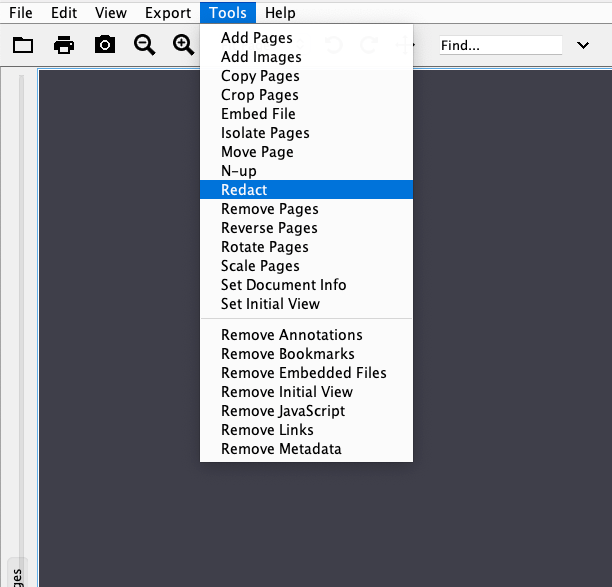
This will bring up a dialog box to confirm which page you want to draw over, press OK to confirm.
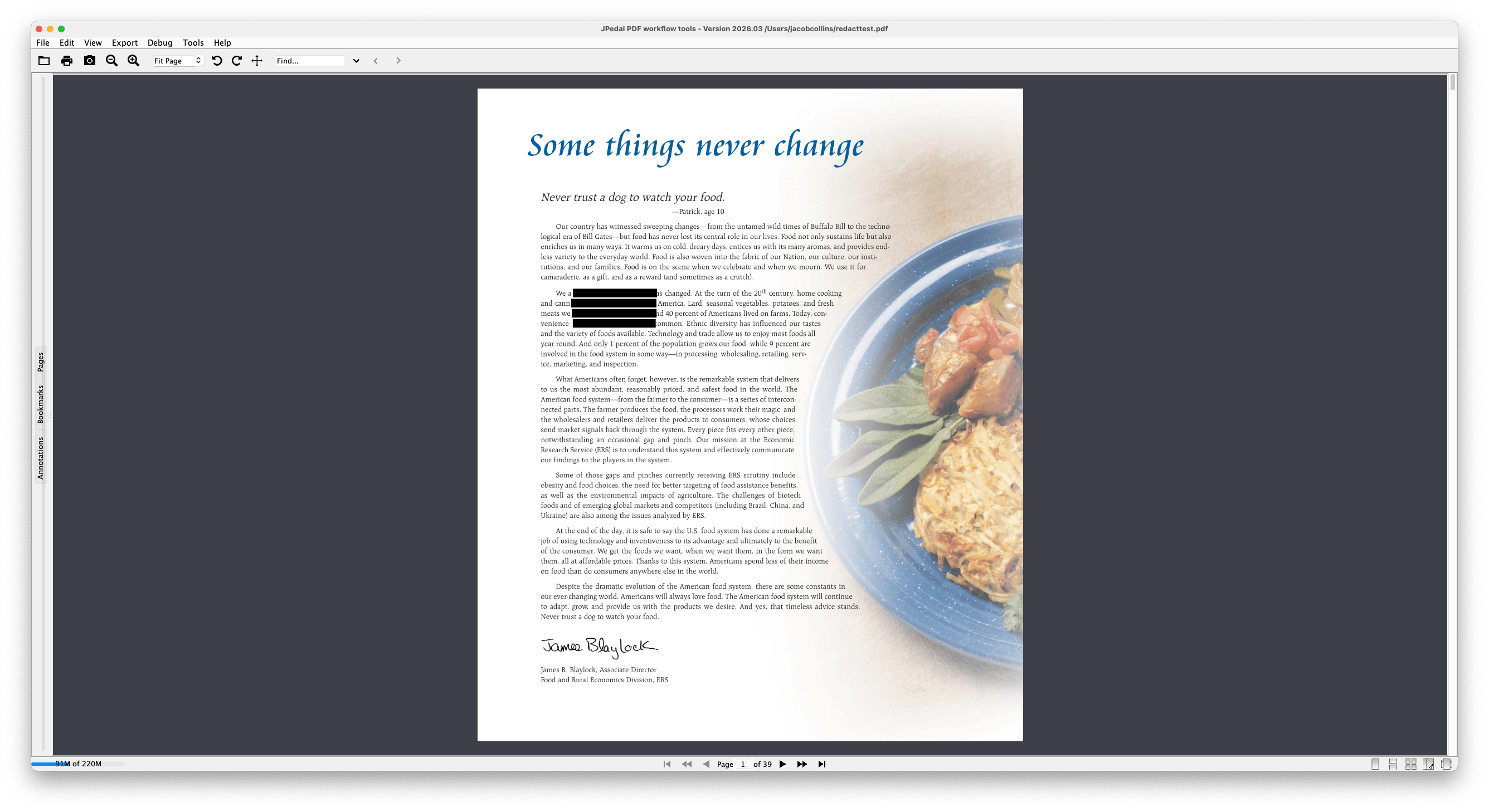
You can now drag a rectangle over the area you want to redact. Any text that intersects this rectangle will be removed and a black box will take its place.
Download JPedal
You can download a copy of the JPedal jar from our website and get started using the JPedal Viewer as a PDF redaction tool.
Resources
The JPedal PDF library allows you to solve these problems in Java
//Convenience static method (see class for additional options)
ExtractClippedImages.writeAllClippedImagesToDir("inputFileOrDirectory", "outputDir", "outputImageFormat", new String[] {"imageHeightAsFloat", "subDirectoryForHeight"});
final PdfManipulator pdf = new PdfManipulator();
pdf.loadDocument(new File("inputFile.pdf"));
pdf.addPage(1, PaperSize.A4_LANDSCAPE);
pdf.addText(1, "Hello World", 10, 10, BaseFont.HelveticaBold, 12, 1, 0.3f, 0.2f);
pdf.addImage(1, new BufferedImage(), new float[] {0, 0, 100, 100});
pdf.rotatePage(1, 90);
pdf.apply();
pdf.writeDocument(new File("outputFile.pdf"));
Viewer viewer = new Viewer();
viewer.setupViewer();
viewer.executeCommand(ViewerCommands.OPENFILE, "pdfFile.pdf");
//Convenience static method (see class for additional options)
ExtractTextAsWordList.writeAllWordlistsToDir("inputFileOrDirectory", "outputDir", -1);
PdfMerge.mergeFiles(new File("inputFile1.pdf"), new File("inputFile2.pdf"), new File("outputFile.pdf"));

PdfManipulator.splitInHalf(new File("inputFile.pdf"), new File("outputFolder"), pageToSplitAt);
PrintPdfPages print = new PrintPdfPages("C:/pdfs/mypdf.pdf");
if (print.openPDFFile()) {
print.printAllPages("Printer Name");
}//Convenience static method (see class for additional options)
ExtractClippedImages.writeAllClippedImagesToDir("inputFileOrDirectory", "outputDir", "outputImageFormat", new String[] {"imageHeightAsFloat", "subDirectoryForHeight"});
//Convenience static method (see class for additional options)
ArrayList resultsForPages = FindTextInRectangle.findTextOnAllPages("/path/to/file.pdf", "textToFind");
java -jar jpedal.jar --inspect "inputFile.pdf"PdfSigner.signPdf(
"inputFile.pdf",
"outputFile.pdf",
"keystorePassword",
"keystoreFile.p12",
"signerName",
"signerLocation",
"signingReason",
ACCESS_PERMISSION.P1
);What is JPedal?
JPedal is a commercial Java PDF Library that makes it easy for Java developers to work with PDF Documents in Java.
Why use JPedal?
JPedal makes it much easier to work with PDF files from Java. Because we have been actively developing our Java PDF Toolkit for over 20 years, it works with all those problem PDF files out there.
What licenses are available?
We have 2 licenses available:
'Server' for on premises and cloud servers and 'OEM' for use in a named end user applications. Both are one time fees with options support renewal after 12 months.
How to use JPedal?
Want to learn more about JPedal and how to use it, we have plenty of tutorials and guides to help you.

